

An embroidery machine reads needle positions and machine commands, rather than image pixels. Creating an embroidery file means translating artwork into a stitch plan. This guide follows that process from preparing the image and choosing stitch types to reviewing the sequence and exporting a machine file.
That sounds like a lot, but it's very learnable. In this guide we'll go through it step by step, from the artwork to the finished file, with starting values for the most common fabrics and the mistakes almost everyone makes at first.
Working on a Mac? Take a look at Nuime Designer, modern embroidery software built from the ground up for the Mac. The Free edition includes essential design, preview and machine export tools. Permanently free, including commercial use.
In this article
- What an embroidery file really is
- 1. The right artwork
- 2. Simplify and choose thread colours
- 3. Trace the shapes
- 4. The right stitch type
- 5. Density, underlay and pull compensation
- 6. The stitch order
- 7. Check and test-stitch
- 8. Save for your machine
- When things go wrong
- Making embroidery files on a Mac
- Frequently asked questions
What an embroidery file really is
A printer places tiny dots of ink side by side and mixes any shade from them. An embroidery machine can't do that. It only ever has one thread colour threaded, and every area is built from hundreds of threads running in a particular direction. The embroidery file records exactly that: every needle point, the stitch order and the places where you change colour.
There's also something no image tells you: fabric moves. Every stitch pulls on it a little. If the file doesn't plan for that, the fabric puckers, areas get narrower and the outline ends up next to the fill instead of on top of it. That's why "image in, embroidery file out" almost never looks good. Good files come from someone making these decisions on purpose.
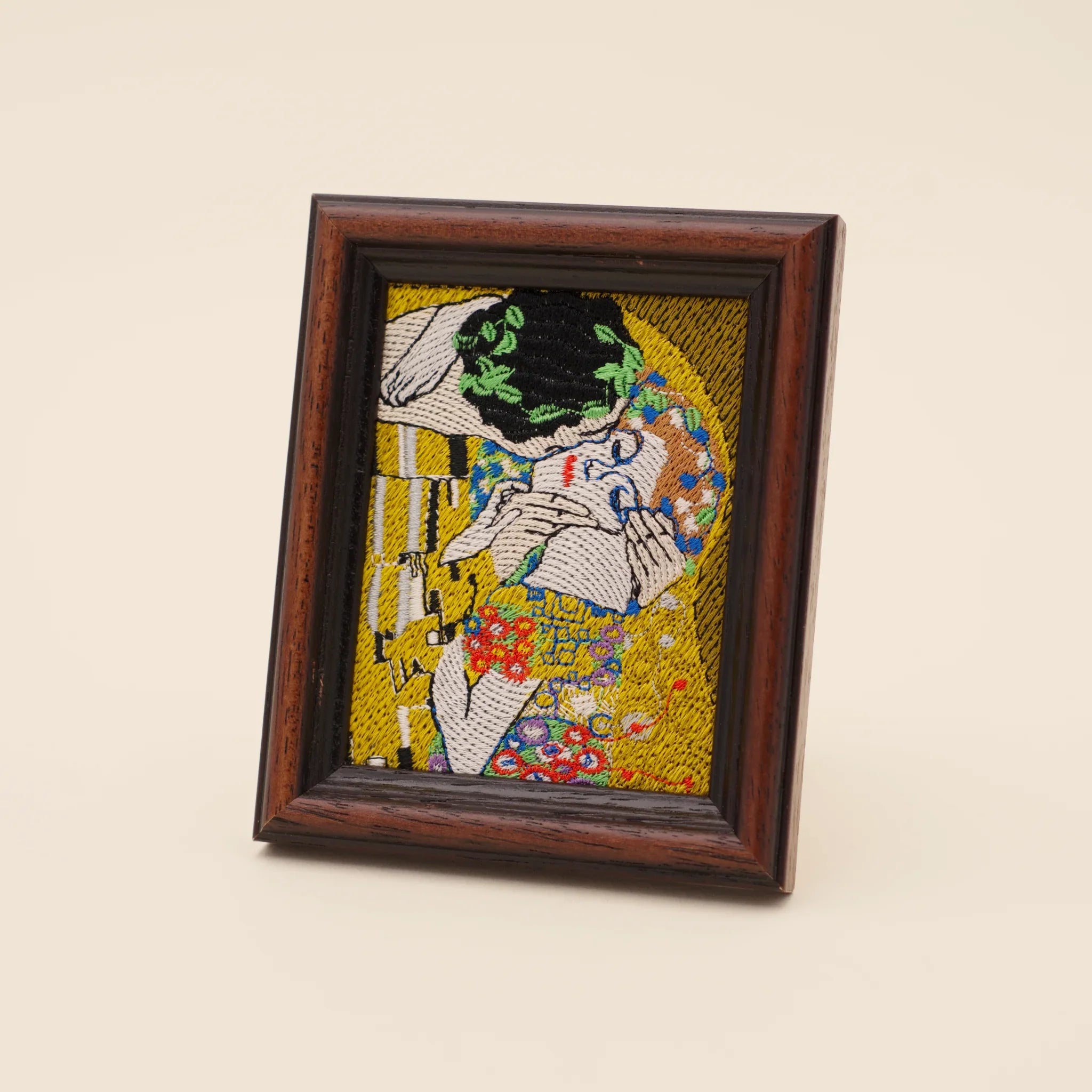
Klimt's "The Kiss" as embroidery: every gold area is its own shape with its own stitch direction.
Step 1: The right artwork
Half the work happens before the first stitch. Designs with clear shapes and edges work best, such as logos, illustrations and line drawings. Photos with soft transitions are much harder. The number of colours matters too, because every colour means a thread change. Three to six colours are a good place to start.
If your design is an SVG, from Illustrator, Affinity, Inkscape or Figma for example, you're already well ahead. The shapes are clean paths, and tracing is almost done for you.
Plan for the real stitch size from the start, too. Something that looks lovely at 20 cm can turn into a tangle at 5 cm on a chest. A few guidelines help: details under about 1 mm disappear into the thread, letters need to be at least 5 to 6 mm tall, and fill areas shouldn't get narrower than 1 mm anywhere.
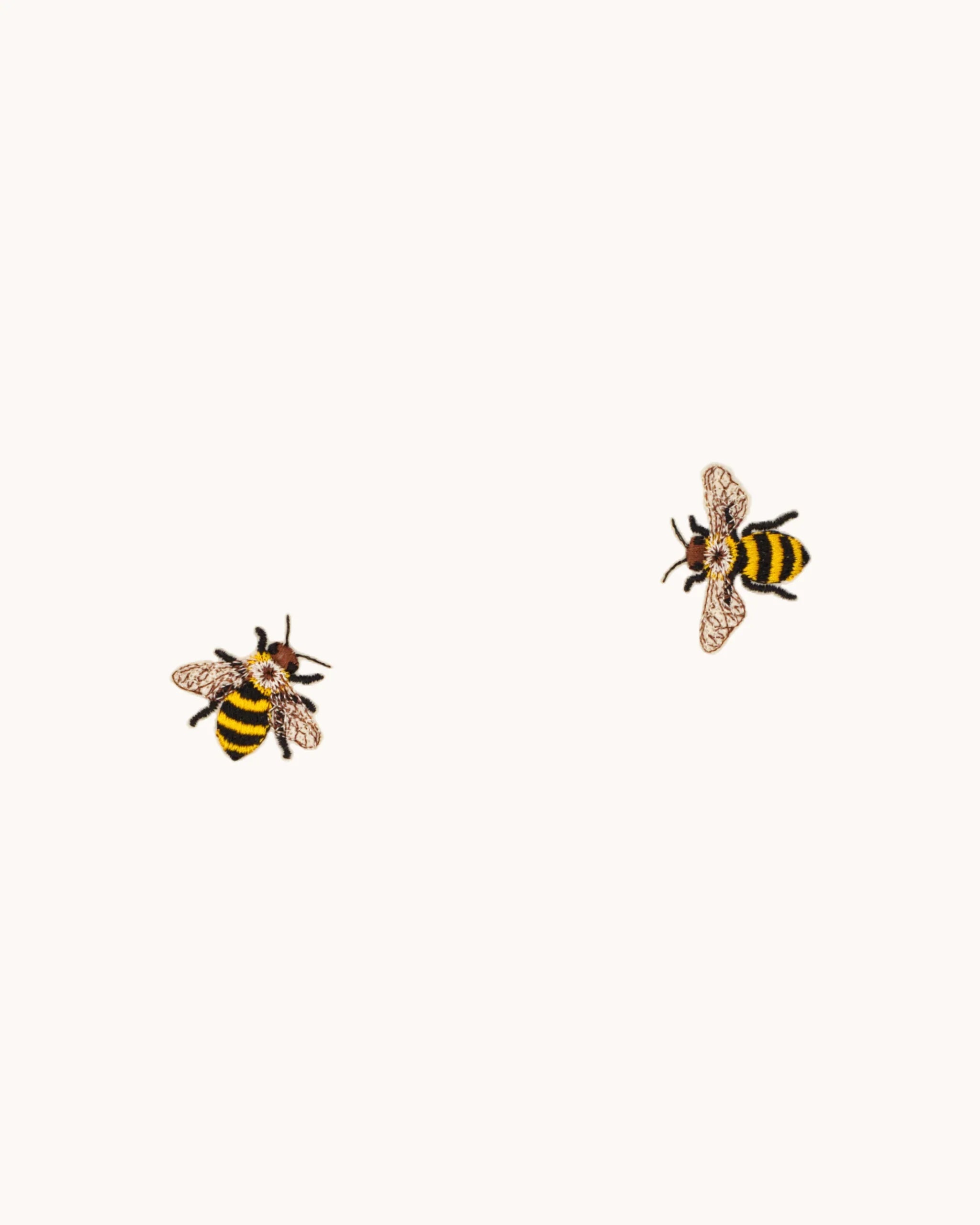
Small designs like these bees work because every detail stays big enough for the thread.
And a word on rights: only use artwork you're allowed to use. Your own drawings, licensed designs and public domain works are fine. Paintings by Klimt or Schiele, for example, are in the public domain. Brand logos and film characters are not.
Step 2: Simplify and choose thread colours
Now you make the design embroidery friendly. Gradients and shadows become a few clear colour areas, and tiny areas get merged or left out. Think in real thread colours straight away, because plenty of screen colours don't exist as thread.
The Madeira colour chart and the thread colour finder help you choose. Enter a screen colour and you'll get a matching thread suggestion.
Step 3: Trace the shapes
If your design is a JPG or PNG, you trace its shapes. Every colour area, every outline and every letter gets a path. You can do this by hand with a pen tool or automatically with vectorization. Automatic tracing is a good start, but it often creates too many points, ragged edges and little fragments. For designs that matter, handwork pays off, because clean paths make clean stitches.
In Nuime Designer you place your image as a template in the background and draw shapes, lines and satin columns right on top.
Step 4: The right stitch type
Now shapes turn into embroidery. For the vast majority of designs, three stitch types are all you need.
| Stitch type | Use it for | Good to know |
|---|---|---|
| Running stitch | Fine lines, outlines, small details | A simple line of stitches, usually 2 to 3 mm long. Stitch it two or three times over for bolder lines ("bean stitch"). |
| Satin stitch | Borders, lettering, narrow shapes | Dense stitches across the shape with a lovely sheen. Ideal up to about 8 to 10 mm wide; beyond that the threads get too long. |
| Tatami (fill stitch) | Larger areas | Rows of short stitches, offset like bricks in a wall. Covers any area with a stable surface. |
A simple rule of thumb by width: anything narrower than 1 mm becomes running stitch, between 1 and about 8 mm satin works well, and anything wider gets a tatami fill.
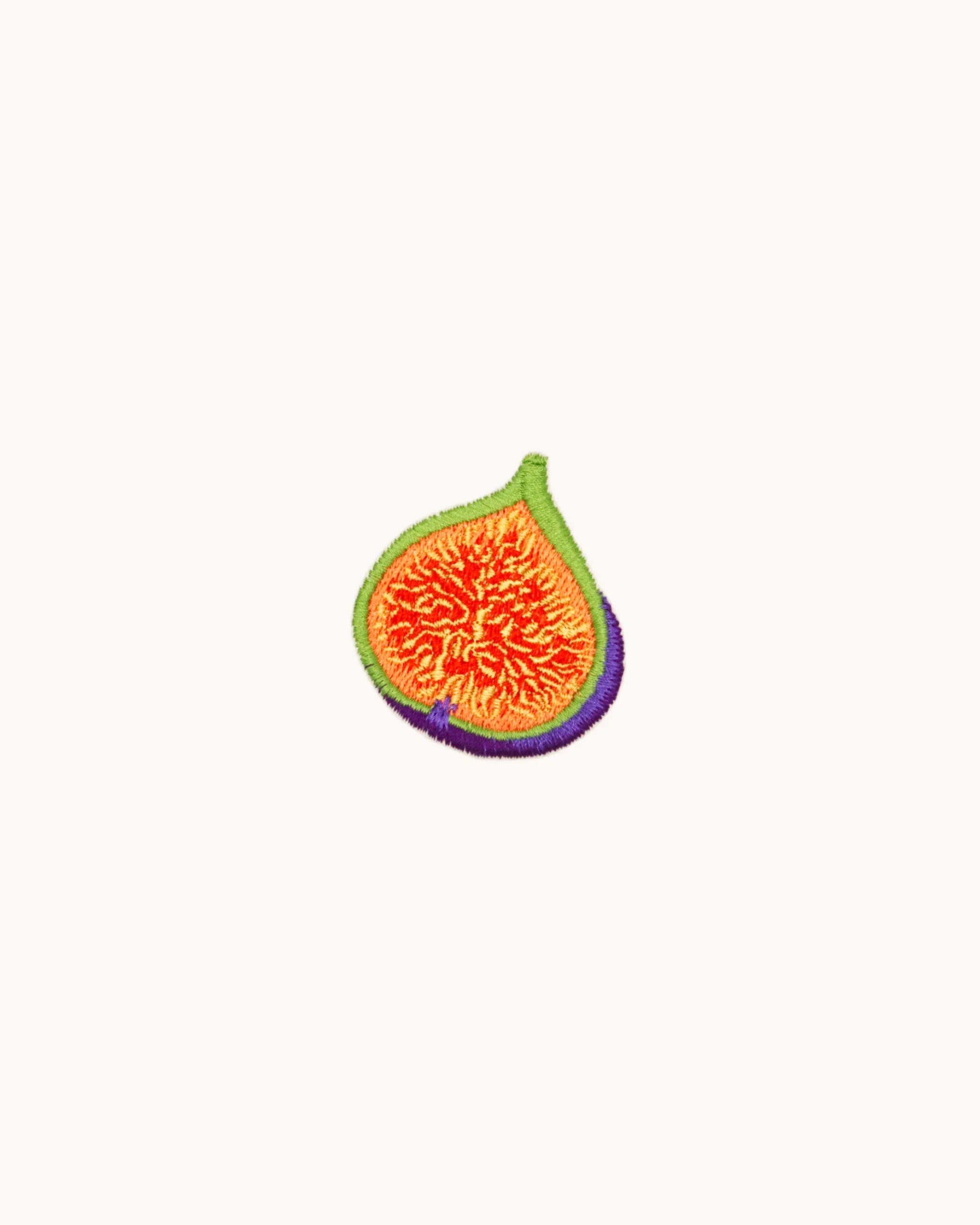
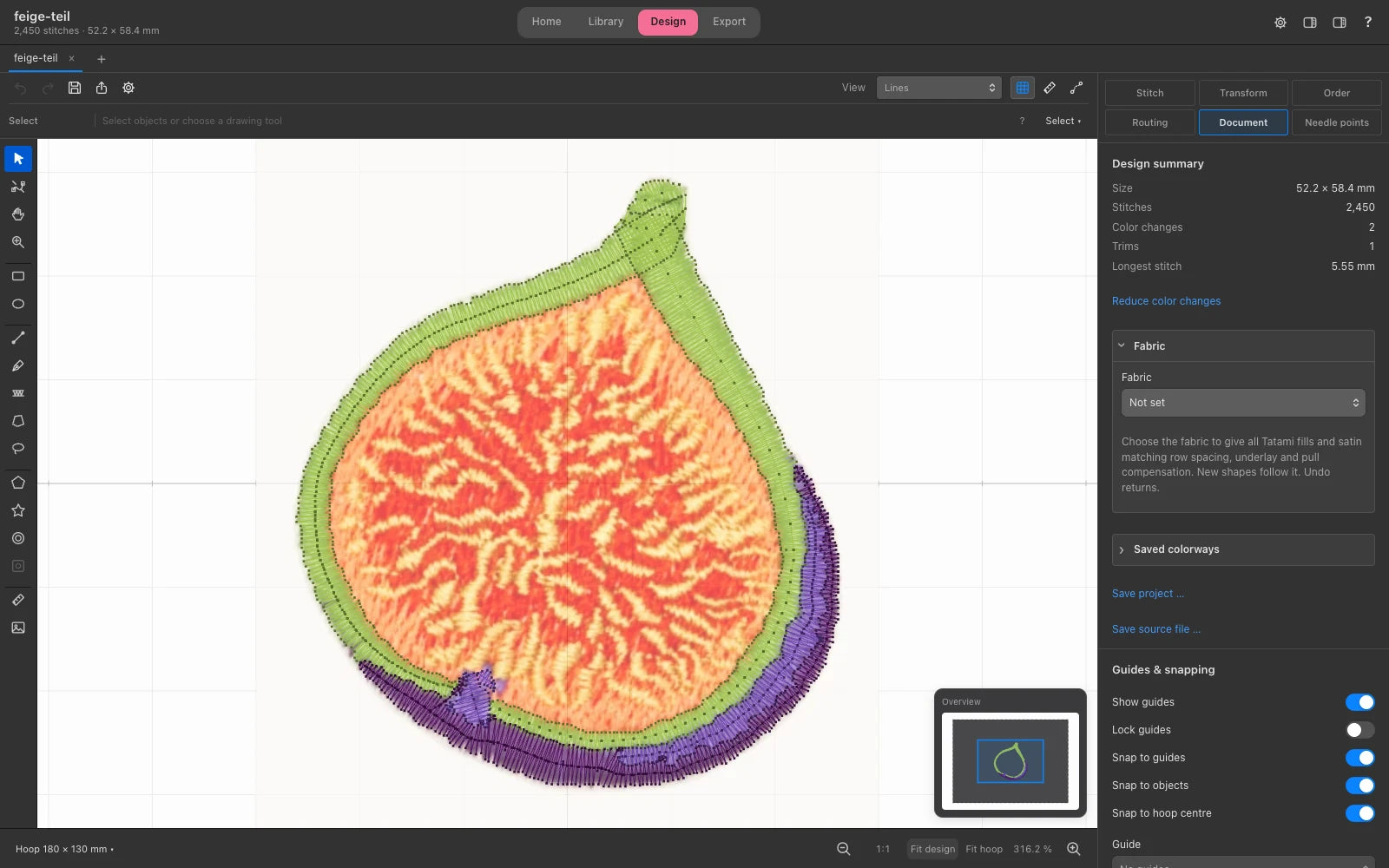
On the fig you can see satin border and fill working together, and how stitch direction brings the fruit to life.
Almost as important as the stitch type is the stitch direction. Thread reflects light. Two areas in the same colour but with different directions look like two different shades. It's a beautiful effect for petals, hair or fur.
Step 5: Density, underlay and pull compensation
These three settings decide whether your design ends up lying flat and clean on the fabric. This is where a good file stands apart from one that just about works.
Density is usually given as the spacing between stitch rows, typically around 0.4 mm. A smaller number means denser. Too dense and the design turns stiff as a board and can break needles. Too loose and the fabric shows through.
Underlay is a set of loose stitches sewn before the visible area. It connects fabric and stabilizer and keeps the top stitches sitting on the surface instead of sinking in. Narrow satin columns usually get a simple centre run, wider ones an extra run along the edges. Tatami areas get a light fill running across the final stitch direction.
Pull compensation makes up for the fact that every stitch pulls the fabric together across the stitch direction. A 10 mm satin column can easily end up only 9 mm wide, leaving a gap between fill and outline. So when digitizing, you make the shape slightly wider on purpose, by 0.1 to 0.3 mm per side depending on the fabric.
Starting values for common fabrics
| Fabric | Stabilizer | Needle | Stitch spacing | Pull compensation per side |
|---|---|---|---|---|
| T-shirt, jersey | Cut-away | Ballpoint 75/11 | 0.40 mm | 0.25 mm |
| Polo shirt, piqué | Cut-away, water-soluble topping | Ballpoint 75/11 | 0.38 to 0.40 mm | 0.30 mm |
| Sweatshirt, fleece | Cut-away, water-soluble topping | Ballpoint 75/11 | 0.38 mm | 0.30 mm |
| Shirt, woven cotton | Tear-away | Sharp 75/11 | 0.40 to 0.42 mm | 0.15 mm |
| Denim, canvas, twill | Tear-away | Sharp 90/14 | 0.40 mm | 0.10 mm |
| Towel, terry | Tear-away, water-soluble topping | Universal 75/11 | 0.36 mm | 0.30 mm |
| Leather, vinyl | Cut-away | Sharp 75/11 | 0.45 to 0.50 mm, no fill underlay | 0.10 mm |
| Thin woven, silk | Wash-away or light cut-away | Sharp 70/10 | 0.42 to 0.45 mm | 0.10 mm |
These are proven starting points. The final say always goes to a test piece on your own fabric.
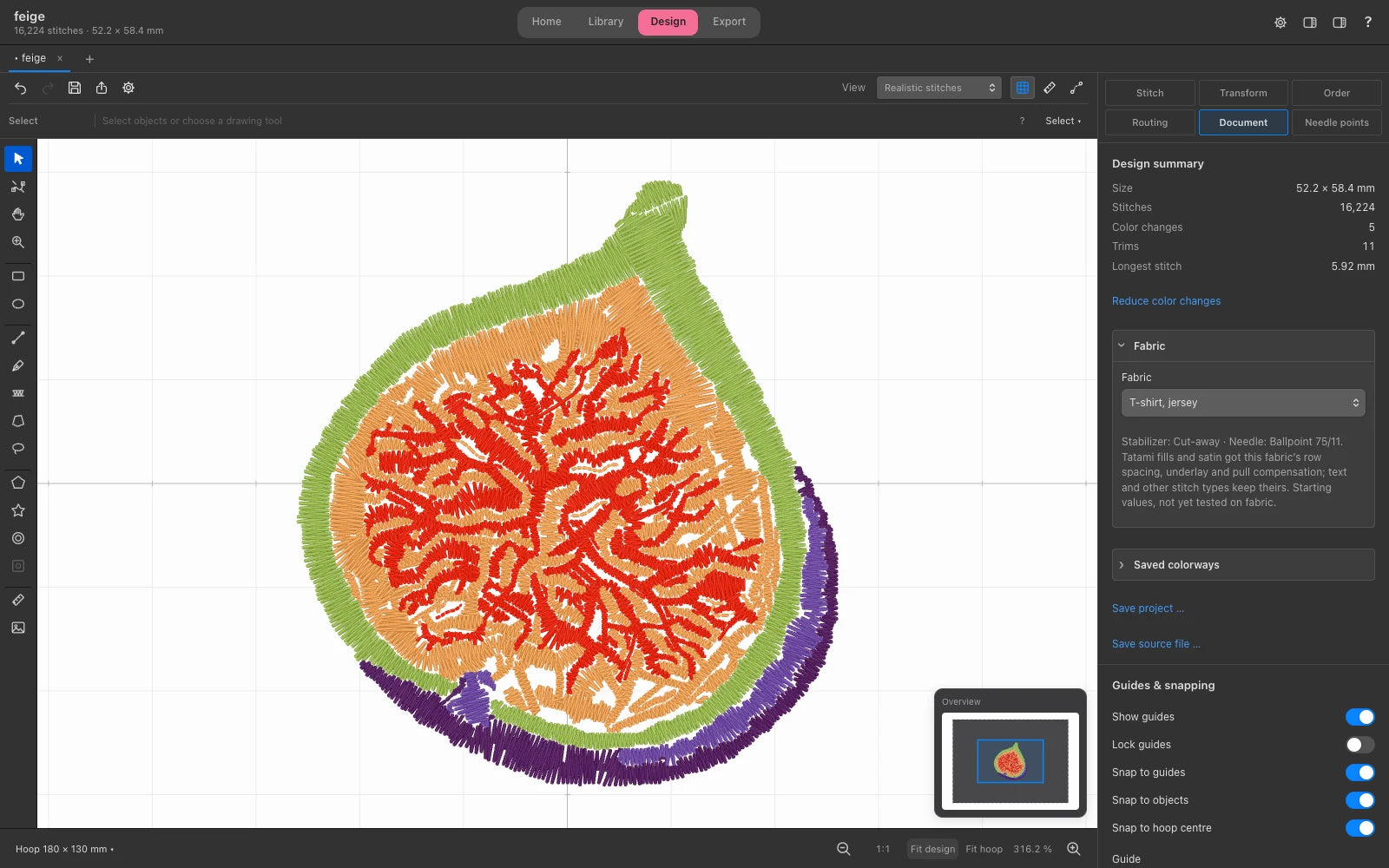
In Nuime Designer you simply pick your fabric. Fabric presets provide experimental starting values for density, underlay and pull compensation, with stabilizer and needle guidance. Test their suitability with your materials.
Step 6: The stitch order
A good file stitches in a well-thought-out order. Background first, then details, outlines last. Work from the centre outwards where you can, so the fabric is pushed evenly outwards instead of bunching up in the middle. Group elements of the same colour to save colour changes and long jumps. And where an area will be covered later anyway, there's no need to stitch underneath it. That keeps the design pleasantly soft.
Step 7: Check and test-stitch
Before an expensive shirt goes into the hoop, take a careful look. The simulation shows you how the machine works through your design and where unnecessary jumps happen. Look out for areas that are too narrow, very long stitches and spots where lots of layers pile up. Then stitch a test piece on a scrap of the same fabric, with the same stabilizer. No software can fully take that step off your hands.
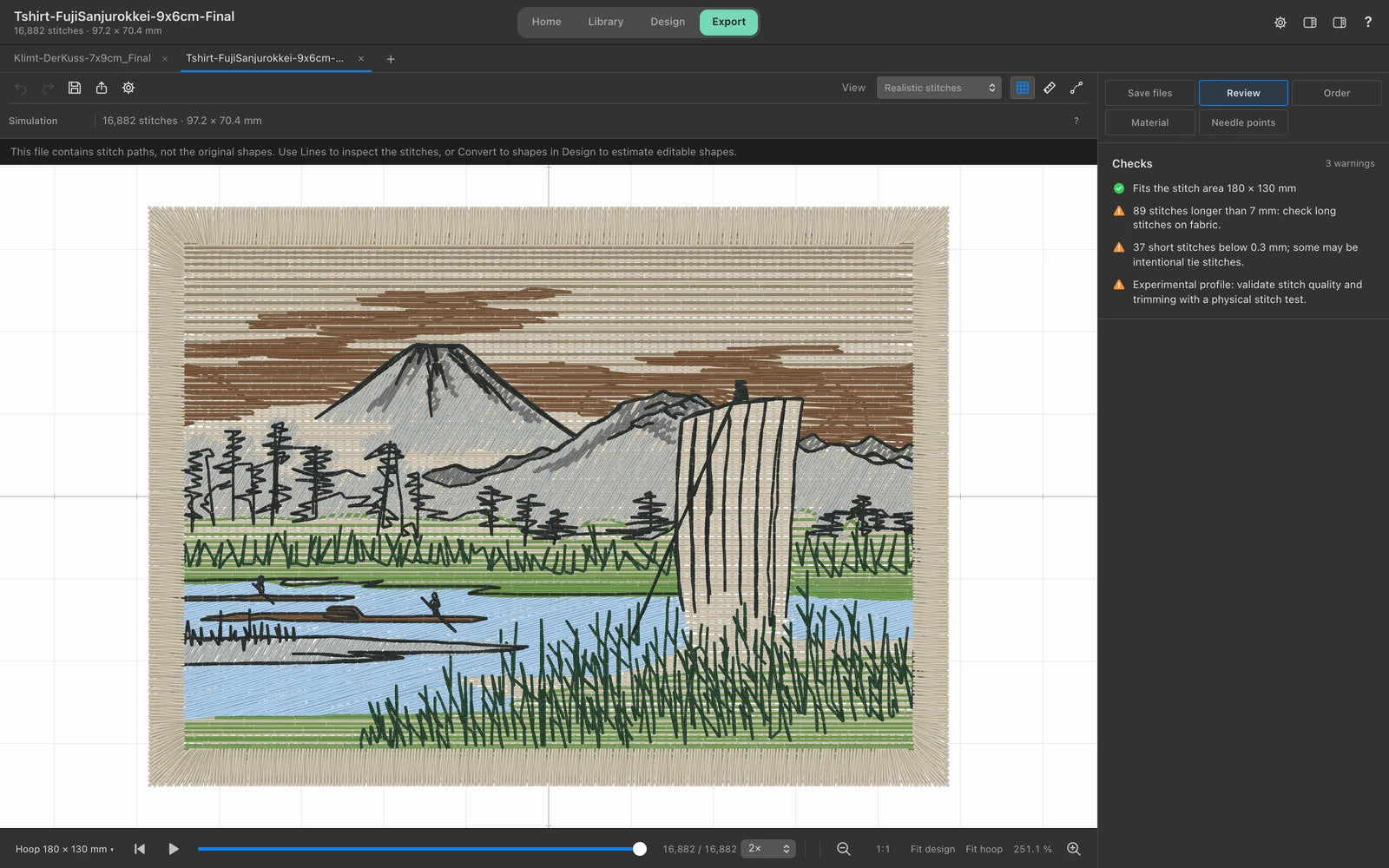
Nuime Designer points out typical problem spots before you stitch, such as details under 1 mm or fill areas that are too narrow.
Step 8: Save for your machine
Finally, save the design in your machine's format.
| Format | Machines |
|---|---|
| PES | Brother, Baby Lock |
| DST | Tajima and many commercial and multi-needle machines (no colour information) |
| JEF | Janome |
| EXP | Bernina, Melco |
| VP3 | Husqvarna Viking, Pfaff |
The file usually gets to the machine on a USB stick. Many machines only read sticks formatted as FAT32, and some struggle with very large ones. A small stick that's only for embroidery saves you a fair bit of trouble.
One important thing: keep the project file as well. The machine file only contains needle points. If you want to change the size, density or fabric later, you'll need the shapes and settings from the project.
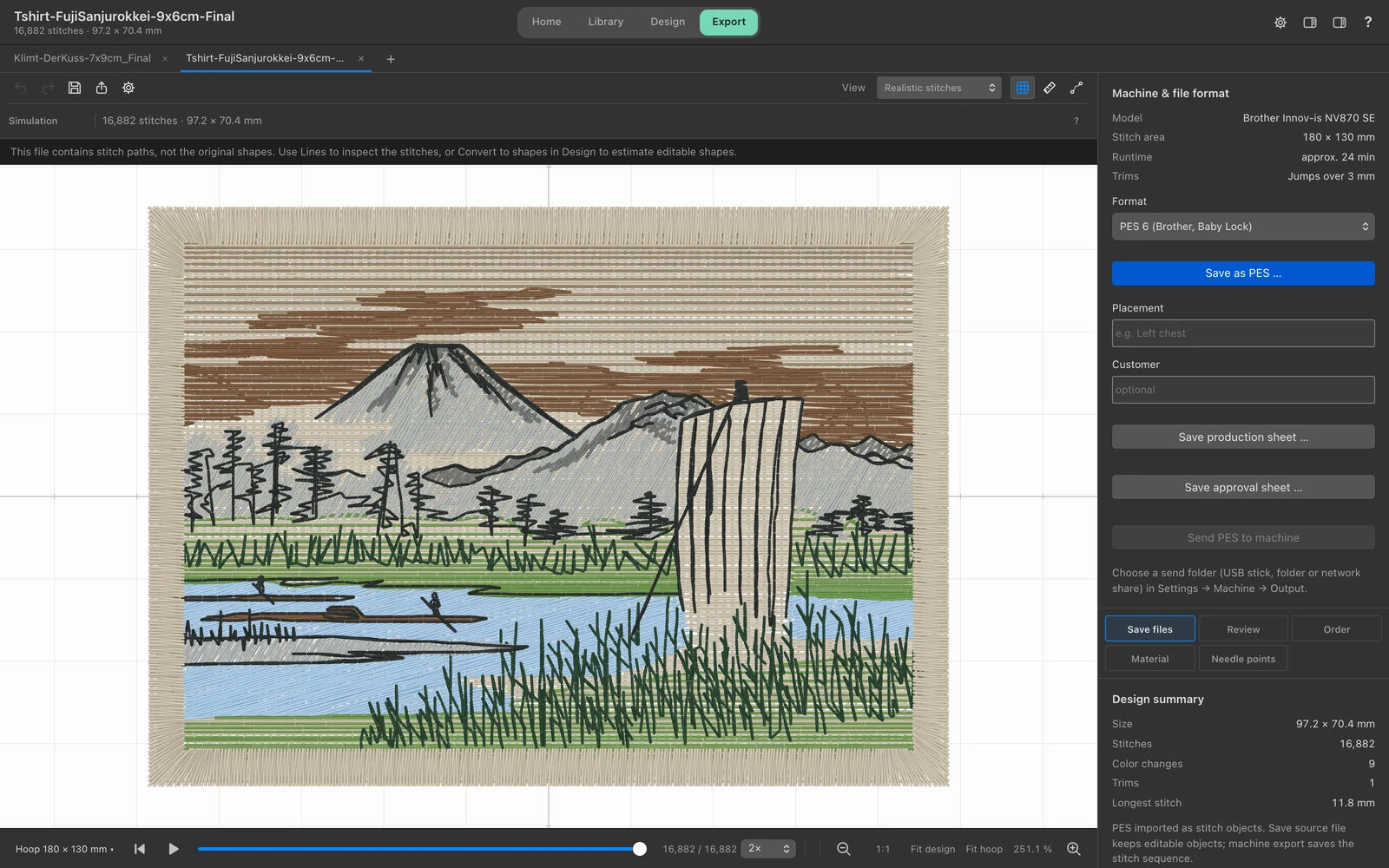
Nuime Designer saves to eight machine formats, straight to your USB stick if you like. Projects are stored as experimental .nuime projects, separate from the machine export.
When things go wrong
| What you see | Common cause | What helps |
|---|---|---|
| Fabric puckers around the design | Wrong stabilizer, hooped too loosely, stitched too densely | Stabilizer to match the fabric, hoop tighter, increase stitch spacing a little |
| Gap between fill and outline | Too little pull compensation | Increase pull compensation, let the outline overlap slightly |
| Design is stiff as a patch | Too dense, too many layers | Reduce density, leave out covered areas |
| Fabric shows through | Too loose, no underlay | Add underlay, stitch a little denser |
| Thread keeps breaking | Very dense spots, dull needle, tension | Check density, change needle, adjust tension |
| Threads to trim everywhere | Poor stitch order | Sort the order, group the same colours |
| Satin edges look ragged | Satin too wide, too little underlay | Use tatami for wide areas, add edge underlay |
Making embroidery files on a Mac
For a long time this was a real problem. Many well-known embroidery programs run only on Windows, and on a Mac you were left with workarounds: Windows in a virtual machine or a drawing program with an embroidery extension. Here's how things look today:
| Software | Runs on Mac? |
|---|---|
| Nuime Designer | Yes, built from the ground up for the Mac |
| Embrilliance | Yes |
| Ink/Stitch (extension for Inkscape) | Yes |
| Hatch, Wilcom Embroidery Studio | No, Windows only |
| Embird | No, Windows only |
Nuime Designer: machine embroidery, rethought
Nuime Designer is embroidery software built from the ground up for the Mac. It has its own stitch engine, a calm, uncluttered interface with tools for essential digitizing tasks. It runs entirely on your Mac, offline too, and you don't need an account.
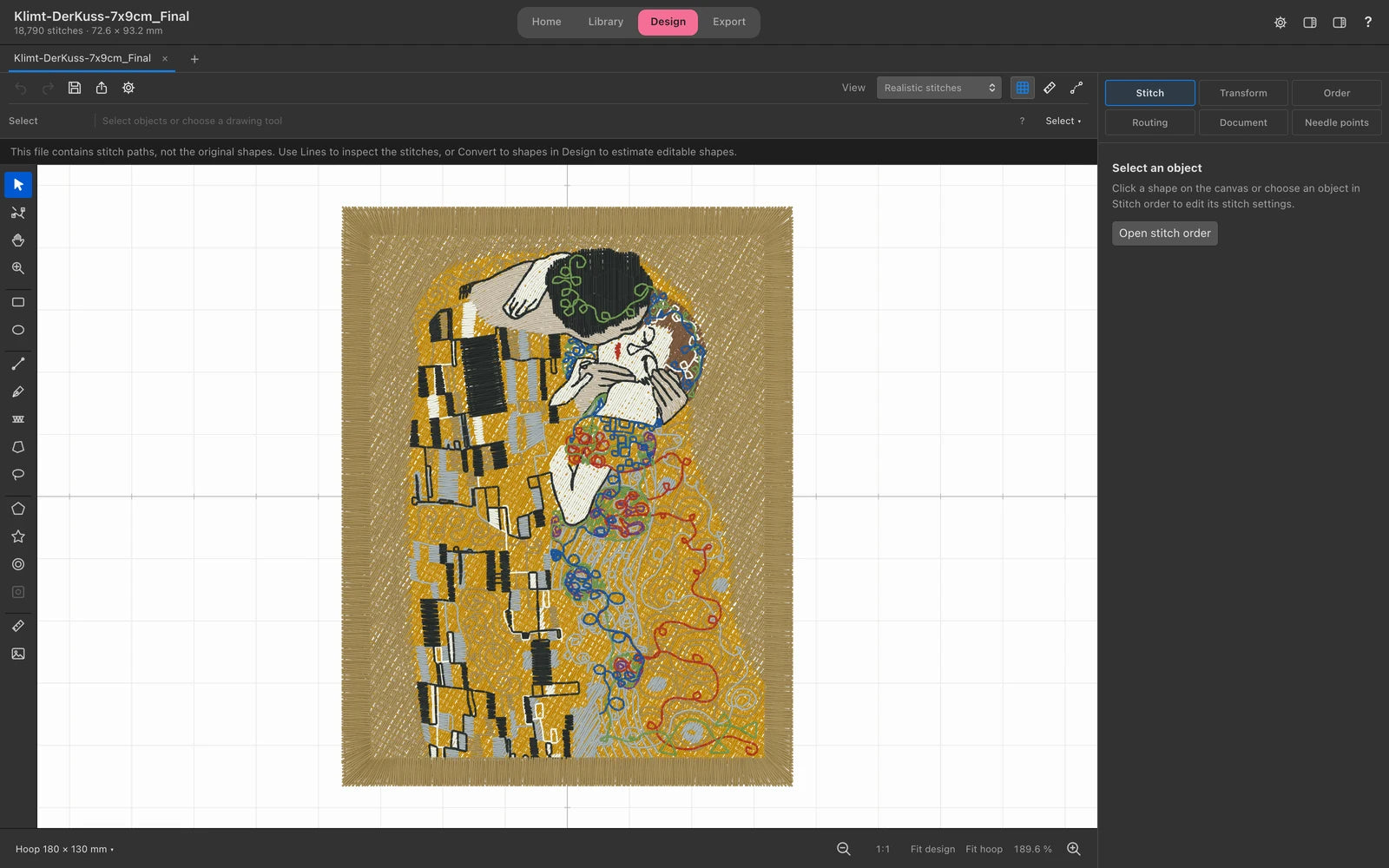
The realistic stitch preview shows the sheen and texture of the thread before the needle touches the fabric.
Even the free edition, Nuime Designer Free, lets you draw shapes, lines and satin columns, open SVGs or trace over an image. You stitch with running stitch, satin and tatami and set density, underlay, direction and pull compensation yourself, or simply pick your fabric. Preview, simulation and checks help you review the calculated stitch plan. A sew-out test is needed to assess its behaviour on fabric. You save to PES, DST, JEF, VP3 and more, with a production sheet and a library for all your embroidery files.
Nuime Designer Studio adds further tools. Turn supported fonts on your Mac into embroidery lettering and work with special fills and effects. Automatic digitizing of images, appliqué, name lists and mockups of your products come with it too.
Free stays free, with no export limit and no time limit, including for commercial use. All you need is a Mac with Apple silicon.
Curious about Nuime Designer?
The Nuime Designer page has every feature, plus Free and Studio side by side. Discover Nuime Designer →
Frequently asked questions
What does digitizing mean in embroidery?
Building an embroidery file from a graphic. You create the shapes, set stitch type, direction, density and order, and save the result in your machine's format.
Can any image be turned into an embroidery file?
Almost any, but rarely as-is. Photos with soft gradients need heavy simplification. It works best with clear shapes, good contrast and few colours.
Can I convert a JPG or PNG straight to PES?
There are automatic converters, but for most designs the results are disappointing: too dense, with wrong stitch directions and lots of jumps. It's better to simplify the image, trace the shapes and choose the stitch types yourself.
Can I create embroidery files for free?
Yes. Ink/Stitch is free and open source. Nuime Designer Free is free too, as a standalone Mac app and including commercial use.
What embroidery software is there for Mac?
Embrilliance and Nuime Designer run directly on the Mac, plus Ink/Stitch as an extension for Inkscape. Hatch, Wilcom Embroidery Studio and Embird are Windows only. For a detailed look at their strengths and limits, read Embroidery Software for Mac: Features, Formats and Nuime Designer.
What's the difference between PES and DST?
PES is the Brother and Baby Lock format and stores the thread colours. DST comes from Tajima, is common on commercial and multi-needle machines and only knows stitches and colour changes, not the colours themselves.
How long does digitizing take?
With some practice, a simple logo takes about an hour. Detailed picture designs take many hours, test stitch-outs included.
How do I format a USB stick for my embroidery machine?
As FAT32. On a Mac, use Disk Utility and choose "MS-DOS (FAT)"; on Windows, use "Format" in File Explorer. Smaller sticks are often more reliable.
Wrapping up
A good embroidery file isn't a converted image but a well-thought-out plan. It starts with clear artwork. Every shape gets the right stitch type, density, underlay and pull compensation are matched to the fabric, and the stitch order is planned with care. Once you've understood these eight steps, you can prepare your own designs more deliberately. And with Nuime Designer, you can do it on a Mac, in a modern app, for free.
If you're just getting started with embroidery, the beginner's guide to machine embroidery covers machines, stabilizer, thread and your first project.




![Personalisiertes Unisex-T-Shirt mit gesticktem japanischen Wunschtext, erhältlich in 7 Farben, Classic und Oversized Fit [MOT]](http://keomakindl.com/cdn/shop/files/custom-tshirt-embroidery-your-text-japanese-colors.webp?crop=center&height=350&v=1776698323&width=298)
![Personalisiertes T-Shirt in Weiß mit japanischem gesticktem Text – Detailaufnahme der Stickerei [MOT]](http://keomakindl.com/cdn/shop/files/tshirt-overview-personalized-custom-japanese-text-detail.webp?crop=center&height=350&v=1776698323&width=298)


![Personalisiertes Unisex-T-Shirt mit gesticktem Wunschtext, erhältlich in 7 Farben, Classic und Oversized Fit [MOT]](http://keomakindl.com/cdn/shop/files/custom-tshirt-embroidery-your-text-colors.webp?crop=center&height=350&v=1776698282&width=298)
![Personalisiertes weißes T-Shirt mit deinem bestickten Text – Detailaufnahme der Stickerei [MOT]](http://keomakindl.com/cdn/shop/files/custom-tshirt-embroidery-your-text-detail.webp?crop=center&height=350&v=1776698282&width=298)


