
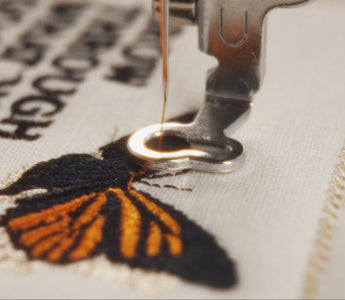
The outline meets the fill perfectly on screen. On the fabric, a thin gap appears between them. If that sounds familiar, pull compensation is worth checking. It extends stitch ends so a stitched area has extra width to allow for pull-in during sewing.
Before increasing it, look at the gap itself. A fill that comes out too narrow needs a different fix from an outline that has shifted to the right. Here’s how to tell them apart, adjust pull compensation in Nuime Designer and find a useful setting with a small test sew-out.
The quick answer
Fill too narrow? Compensation extends the stitch ends. In Nuime, 0.2 mm per side adds 0.4 mm to the planned width.
Outline shifted? Check hooping, stabilizer and sewing order first.
Test it: Change one setting, use the same materials and compare after unhooping.
Contents
- What does pull compensation do?
- Which kind of gap do you have?
- Adjusting pull compensation in Nuime Designer
- Finding a setting with a test sew-out
- When more compensation doesn’t help
- Frequently asked questions
What does pull compensation do in machine embroidery?
Thread and stitches put force on the fabric as the machine sews. An area can pull in along the direction of its stitches. Pull compensation places the stitch ends a little farther out, adding width to allow for that pull-in on your material.
A straight satin column makes this easy to picture. The stitches cross between two edges. If the drawn column is 4 mm wide and you set compensation to 0.2 mm in Nuime, the planned top stitches span 4.4 mm. At 0.3 mm, they span 4.6 mm. Those are planned stitch dimensions, not guaranteed measurements of the finished embroidery.
For a regular Tatami fill, Nuime extends the area along the chosen stitch angle. With horizontal stitch rows, that affects the left and right edges. It won’t automatically close a gap above the fill. Always check stitch direction before deciding what to adjust.
Brother’s help page on gaps between fills and outlines also describes gaps that appear on fabric despite a gap-free preview. It points to both stabilization and pull compensation as things to check.

Which kind of gap do you have?
Put the sew-out beside the preview. First work out whether an area is too small or whether two parts have shifted relative to each other.

The area is too narrow on opposite sides
A vertical satin column might fall short of its drawn edges on both the left and right. Or a Tatami fill with horizontal rows may fail to reach its side outlines. That fits pull-in along the stitch direction. A small comparison with more compensation is useful here.
The outline sits outside the fill on one side and inside it on the other
That points more toward registration shift. Check whether fabric or stabilizer can slip in the hoop, whether the garment’s weight pulls on it, and how much sewing happens between the fill and its outline. More compensation widens the fill; it doesn’t realign a shifted outline.
The gap is already visible in the stitch plan
Check the drawn shapes and their overlap. Do they actually meet? Is the outline in the right place? Increasing a setting along every edge rarely fixes the underlying geometry.
The gap is inside a letter
A join between two satin sections needs its own check. Look at their directions, sewing order and overlap. Widening the entire lettering can close small counters while leaving the troublesome join open.
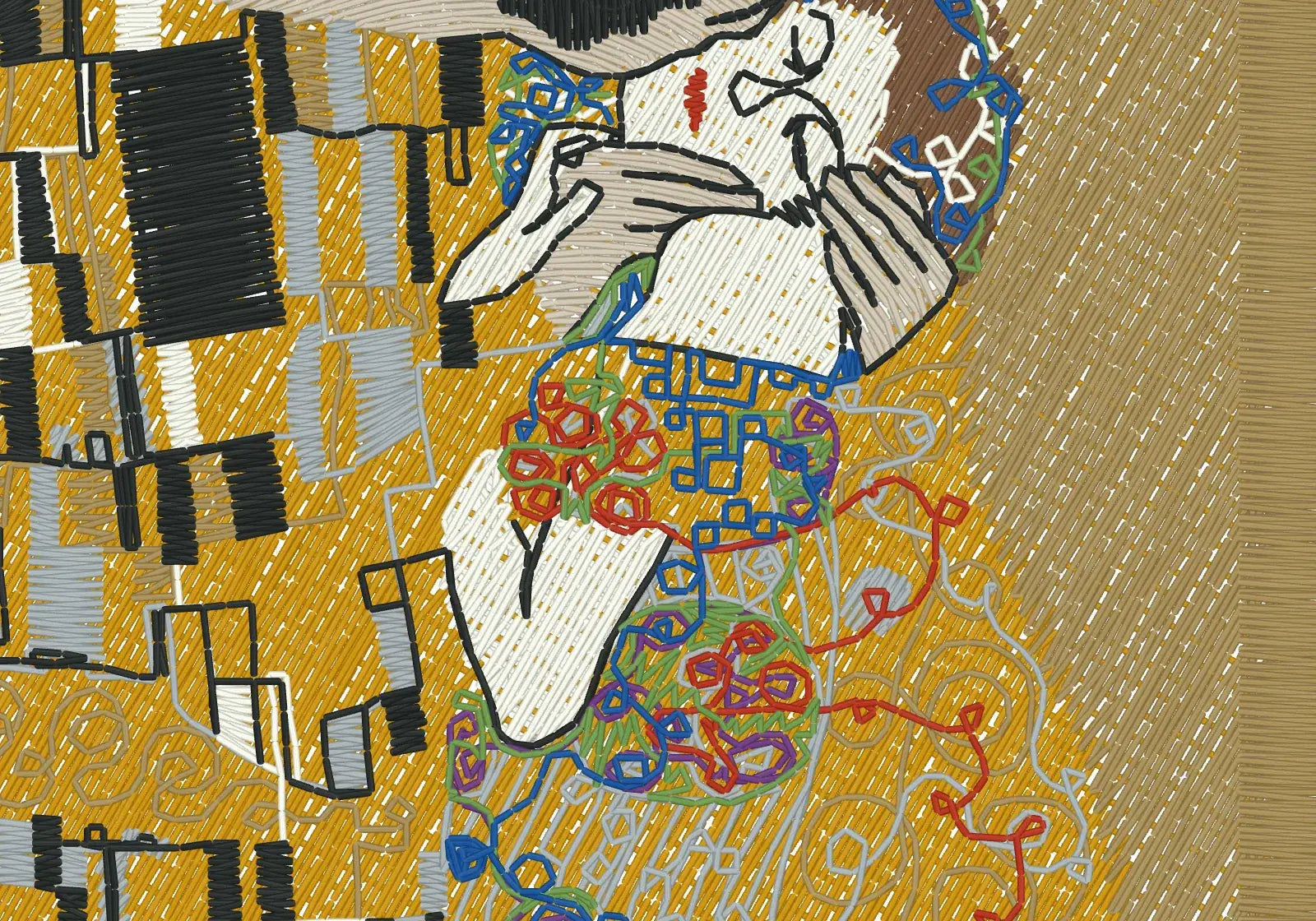
Adjusting pull compensation in Nuime Designer
I’m using Nuime Designer, the Mac embroidery software I develop. You need a design with editable embroidery objects for these steps. A finished PES or DST file generally holds stitches and machine commands, rather than the original fill and satin settings.
1. Save a comparison copy
Save a separate copy of your project before making changes. Record the existing compensation, design size and materials. Keep density, underlay, stitch angle and machine tension unchanged for this comparison. Otherwise, you won’t know which adjustment made the difference.
2. Select the affected object
Select the fill or satin column that stitched too narrow. In the settings panel on the right, open Stitch, then Stitch settings, and find Pull compensation. Start with that one object. Making the outline thicker may cover the gap, but it changes the look of the design too.
3. Compare small increments
If the current setting is 0 mm, try 0.1 and 0.2 mm alongside it. If it’s already 0.2 mm, compare that with 0.3 mm. This is a test series, not a universal recipe for jersey or cotton. The amount you need also depends on the design, thread, underlay and stabilization.
Nuime allows 0 to 1 mm in 0.05 mm steps here. The upper limit isn’t a target. Watch small lettering in particular: extra width can reduce counters and spaces between parts of a letter.
4. Review the recalculated stitch plan
Zoom into the Lines view and compare the stitch ends with the shape. Compensation can make them extend beyond its drawn edge. Check for excessive overlap between neighboring areas and narrower openings. Then save the project and export a new machine file. The old file on your USB stick won’t update itself.
If the field is disabled: Pull compensation is currently unavailable for Turning Tatami with multiple direction lines. You can use a regular, fixed-angle Tatami fill in a separate copy for a controlled comparison. That changes the stitch flow, though; it isn’t an equivalent replacement for your original design.
Finding a setting with a test sew-out
You don’t have to sew the whole design for every comparison. Start with the affected section, including its outline and neighboring areas. A plain rectangle tells you little about what happens at a complicated join.

- Use the actual materials: The fabric, stabilizer, thread and needle intended for the finished piece. Hoop jersey without stretching it; use suitable cut-away stabilizer for T-shirts.
- Label the settings: For example, A = 0.0 mm, B = 0.1 mm, C = 0.2 mm. Write them on paper or outside the sewing area.
- Keep conditions consistent: Use the same size, direction, underlay, density, hooping method and machine settings.
- Compare after unhooping: Lay the relaxed fabric flat. Which sample closes the gap without bulky edges, filled-in counters or visible distortion?
- Confirm in the complete design: Test the best candidate with the actual sewing order. Surrounding areas can change the result.
For a general material comparison, choose Calibration card on Nuime’s start screen, then Pull compensation. The card includes color joins at 0.0 / 0.1 / 0.2 / 0.3 mm and 4 mm satin columns at 0.0 / 0.2 / 0.4 mm compensation per side. It helps you see the effect on your materials. It doesn’t replace testing the difficult join in your own design.
Record more than the number. “0.2 mm worked” won’t tell you much next time. Note the design size, stitch type and angle, density, underlay, fabric, stabilizer, thread, needle and machine. That gives you a useful starting point for a similar job.
When more compensation doesn’t help
The fabric puckers: Check stabilization, hooping and whether too much thread is packed into a small area. Compensation won’t fix every kind of distortion. Pulling fabric tighter is especially unhelpful with jersey.
The edges become bulky: Reduce the setting and check overlaps. Increasing density isn’t a reliable fix for an edge gap either: you add thread without removing the cause of misalignment.
The gap moves or only appears sometimes: Check the physical setup first: loose hooping, slipping material, garment drag or the hoop catching on an obstruction. A fixed software setting can’t compensate for inconsistent movement.
For more on preparing jersey, read How to Embroider a T-Shirt. If you’re still building the design, the image-to-embroidery guide covers preparing shapes, choosing stitch types and planning the sewing order.
Frequently asked questions
Does 0.2 mm mean total compensation or per side?
In Nuime Designer, it means per side. A straight satin column gains a total of 0.4 mm in planned stitch width. Don’t copy the number into another program without checking how it defines and calculates compensation.
What pull compensation should I use for T-shirts?
There’s no single setting for every shirt. Compare small increments on your actual jersey with suitable stabilizer. If the fabric is stretched during hooping or slips, fix that first.
Can I change pull compensation in a purchased PES file?
The original object settings usually aren’t included. Nuime can estimate shapes from machine stitches, but that doesn’t recover the original satin objects or fill settings. For a targeted correction, ask the digitizer for a version suited to your fabric or for the editable source.
Why does the preview look too wide with compensation?
It shows the extra planned stitch width. It doesn’t simulate how much your particular fabric will give under the thread. Judge the sew-out after unhooping.
Should I increase thread tension?
An outline gap alone isn’t a reason to do that. Check tension using your machine’s manual and address clear tension problems separately. Changing tension and compensation together makes the comparison hard to interpret.

Check the difference on your own design.
Use Nuime Designer to adjust compensation on editable objects, inspect the stitch plan and export a comparison file for your machine. Explore Nuime Designer →




![Personalisiertes Unisex-T-Shirt mit gesticktem japanischen Wunschtext, erhältlich in 7 Farben, Classic und Oversized Fit [MOT]](http://keomakindl.com/cdn/shop/files/custom-tshirt-embroidery-your-text-japanese-colors.webp?crop=center&height=350&v=1776698323&width=298)
![Personalisiertes T-Shirt in Weiß mit japanischem gesticktem Text – Detailaufnahme der Stickerei [MOT]](http://keomakindl.com/cdn/shop/files/tshirt-overview-personalized-custom-japanese-text-detail.webp?crop=center&height=350&v=1776698323&width=298)


![Personalisiertes Unisex-T-Shirt mit gesticktem Wunschtext, erhältlich in 7 Farben, Classic und Oversized Fit [MOT]](http://keomakindl.com/cdn/shop/files/custom-tshirt-embroidery-your-text-colors.webp?crop=center&height=350&v=1776698282&width=298)
![Personalisiertes weißes T-Shirt mit deinem bestickten Text – Detailaufnahme der Stickerei [MOT]](http://keomakindl.com/cdn/shop/files/custom-tshirt-embroidery-your-text-detail.webp?crop=center&height=350&v=1776698282&width=298)


