
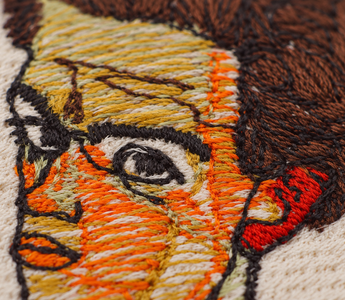
The embroidery looks flat in the hoop. Once you release it, the fabric draws in and small ripples appear around the design. Or the stitched area already feels hard while the machine is sewing. Either problem can involve the file, but the file isn’t always the cause.
Before adding more stabilizer or changing thread tension, compare two things: when do the ripples appear, and where? That helps narrow down the cause and saves you from sewing samples with five changes at once.
What to check first
Ripples only after unhooping? Check whether the fabric was stretched while you hooped it.
Only around a dense fill? Look at row spacing, underlay and overlapping stitched areas.
Uneven or one-sided? Check for slipping material or garment weight pulling on the hoop.
Change exactly one thing for the next sample. Judge the result on relaxed fabric.
Contents
- Puckering or hoop marks?
- Fabric and hooping
- Choosing stabilizer
- Density and thread amount
- Inspecting the file in Nuime
- A useful comparison sample
- What not to change at random
- Frequently asked questions
Puckering, hoop marks or a stiff fill?
Lay the unhooped sample loosely on a table. Don’t stretch it flat or press it before assessing it. Look across the surface in side light and feel it with your hand.
- Puckering: Small folds or raised ripples surround the embroidery. The fabric has distorted.
- Hoop marks: A ring follows the hoop’s shape, sometimes with altered sheen or flattened pile. That alone doesn’t establish a stitch-plan problem.
- A stiff fill: The design may lie flat but feel like a rigid little plate. Check how much thread is there and how many layers cover the area.
- A shifted outline: A line sits beside the fill. It may occur alongside puckering, but support and sewing order need their own check.
A photograph taken in the hoop isn’t enough to assess the result. Note whether the problem appears during sewing, after unhooping or after the first wash. Those are different clues.
1. Check the fabric and hooping
Stretch fabric can look perfectly flat in the hoop because you pulled it longer or wider while setting it up. Once released, it wants to return to its original shape. The embroidery already sewn into it won’t simply shrink along with it.
Lay jersey on the stabilizer in its natural shape. Smooth it without stretching it. If you need to pull hard at the edges after hooping, take it out and start again. Secure the hoop according to your machine’s manual.
The rest of the garment matters too. A heavy shirt hanging over the table can pull on the hoop. Support it so it can move freely without snagging or being held under tension. Check that neither hoop nor fabric catches on anything.
If the same file sews reasonably on a stable scrap but puckers on jersey, that points toward a material mismatch. It doesn’t yet prove the digitizing is suitable for the shirt.
2. Match stabilizer to the fabric and design
Stabilizer supports the fabric during sewing. Suitable cut-away backing is a useful starting point for stretchy shirts. Water-soluble film on top serves a different purpose: it keeps stitches from sinking into a textured surface and doesn’t replace backing.
Choose the weight with both fabric and design in mind. Two light layers aren’t automatically better than one suitable layer. Check whether fabric and backing can slip against each other. Extra layers can make the finished piece unnecessarily stiff without solving that movement.
Brother’s stabilizer guide explains the different types and advises against overstretching fabric during hooping. Follow the stabilizer manufacturer’s instructions when choosing a specific product.
3. Check thread amount: spacing isn’t stitch length
A large Tatami area, overlapping fills and a substantial outline can put a lot of thread in one place. That may be too much for a lightweight shirt even when each individual setting looks unremarkable.

For Tatami, row spacing controls the distance between neighboring rows. Smaller spacing puts more rows into the same height. Larger spacing means fewer rows. Stitch length controls distances along a row instead. Shorter stitches don’t automatically make the fill lighter.
Here’s a comparison to try: increasing row spacing from 0.40 to 0.45 mm gives roughly 11% fewer top-stitch rows in a simple uniform fill. Total stitch count won’t necessarily drop by the same amount because underlay, connections and edge handling also contribute. This is a test adjustment, not a setting recommended for every fabric.
Check the trade-off after sewing. Are there fewer ripples but visible fabric between the rows? The fill is lighter, but its coverage may no longer suit the design.
 Check the file in Nuime Designer
I’m using Nuime Designer, the Mac embroidery software I develop. It lets you inspect a file and change individual settings in editable designs. The preview cannot predict how flat your particular fabric will lie.
Select the affected area
Save a comparison copy first. Then select the area where puckering develops. Record its stitch type, row spacing, angle and underlay. For Tatami, open Stitch → Stitch settings → Row spacing. For satin, the corresponding setting is Zigzag spacing.
If the fill feels very hard, start by comparing a small increase in spacing. Leave the other objects unchanged. Adjusting every fill at once makes it harder to learn from the comparison.
Look for overlaps in the simulation
Play the sewing sequence slowly. What has already been stitched underneath the troublesome area? A background may cover a region completely before another fill sews over it. The finished preview mainly shows the top color; the simulation reveals the order.
Whether you can remove the hidden background depends on the design. An opening can save thread, but its edge may introduce a new gap. Make geometry changes in a copy and check the join separately.


Assess underlay separately
Underlay isn’t simply extra thread to switch off when you want a lighter design. It can support the top stitches. Excessive or duplicated underlay can also make an area firmer. Use the simulation to see what is actually underneath, and avoid changing density and underlay together.
Using Direction rays, Needle density and Pull density
Switch between these three analyses in the view menu. The images below show the same unchanged Klimt stitch plan and framing, including underlay and repeated passes. These are actual Nuime views of your PES file, not redrawn maps.
Direction rays


What this reveals: Orientation changes sharply at the border. Individual crosses inside can come from overlapping stitch directions, including underlay. They establish neither a gap nor a faulty join. If your sew-out puckers at that transition, inspect its sewing order and layers. Zoom further or point at a cell to inspect the reported axis and directional alignment.
Look at the transition between the border and inner areas, where orientations change. If puckering appears there, inspect the same spot in the simulation: what sews first, and what lies underneath? Change an angle only in a copy, then check coverage, joins and sheen. A different direction isn’t automatically better.
Needle density


What this reveals: Look at local concentrations inside the design rather than its overall color. Check short stitches, tie stitches and repeated passes at those locations in the simulation. A white cell doesn’t automatically mean exposed fabric: thread can cross it with needle entries outside the cell. This view measures penetrations, not visible thread coverage.
Look for small concentrations at outlines, joins and overlaps. Inspect that location in the sewing sequence for multiple layers or many short stitches. A high entry count isn’t the same as tight row spacing: underlay and short connections also contribute. Use the map to choose a specific area for a test.
Pull density


What this reveals: The border stands out more here than in the entry-count map. That gives you a specific test area: check its stitch spans, underlay and repeated coverage. Higher relative load is neither measured force nor proof of distortion. Compare the sewn border with the interior before changing a setting.
Compare the prominent border here with Needle density. One area may contain many penetrations; another stands out because of longer spans and repeated coverage. Inspect the relevant objects and their order before changing spacing, underlay or angle. The map doesn’t calculate thread tension or measure the effects of backing and hooping.
For a useful comparison: Keep the color filter and zoom consistent. Colors have different meanings in the three views, so yellow in Pull density doesn’t mean the same thing as yellow in Needle density. After making a change, check the displayed scale rather than comparing colors alone.
Nuime’s fabric presets contain experimental starting values. They don’t replace a sew-out on your materials, and you shouldn’t apply one halfway through a comparison without checking which settings it changes.
A comparison sample you can learn from
- Record the starting point: Photograph the unhooped result and note size, fabric, stabilizer, thread, needle and current settings.
- Choose one possible cause: For example, stretched hooping, insufficient support or too many top-stitch rows.
- Change only that: Either rehoop differently, try another backing or adjust one object’s row spacing.
- Keep size and orientation consistent: Use a scrap of the same material. A cropped test section may behave differently without the surrounding design and full sewing order.
- Assess after unhooping: Compare ripples, coverage, feel, outlines and the back. For washable garments, wash according to the care instructions and assess again.
For a general density comparison, choose Calibration card → Fill density on Nuime’s start screen. It contains Tatami areas at 0.35 / 0.40 / 0.45 / 0.50 mm row spacing. The card lets you compare them on your materials. You still need to test the full design with its actual sewing order.
What to avoid changing at random
More pull compensation: It extends stitch ends and can help with suitable outline gaps. It doesn’t remove unnecessary layers or stop material slipping. Read Pull Compensation: Fixing Outline Gaps for the distinction.
Thread tension: Check threading, needle and bobbin setup against your machine’s manual. Address identifiable tension problems separately. One universal tension number for every machine isn’t a useful fix.
Shrinking a finished file: Scaling existing stitches down moves needle penetrations closer together. It doesn’t automatically create a lighter file. Larger adjustments need a suitable recalculation from editable objects.
Frequently asked questions
Can I iron puckering out?
Pressing may disguise surface wrinkles without fixing their cause. Assess the sample first. Test heat treatment on a scrap and follow fabric and thread care instructions. It won’t reliably rescue severely distorted material.
Why does puckering only appear after washing?
Fabric, thread and backing can respond differently to washing. Previously stretched fabric may relax further. Check whether the material was prewashed and whether the backing suits continued use in the garment.
Can I reduce density in a purchased PES file?
The original object settings usually aren’t included. Reconstructing shapes doesn’t recover them exactly. Ask the supplier for a lighter version suited to your fabric before trying to delete individual stitches.
Is a lower stitch count always better?
No. A low-count file can still have unsuitable long stitches or poor joins. Distribution, coverage, support and behavior on your fabric matter more than reaching the smallest possible number.
For the full shirt preparation workflow, read How to Embroider a T-Shirt.
Use Nuime Designer to inspect the sequence and stitch plan and prepare controlled comparison files. Your sew-out determines whether the material combination works.




![Personalisiertes Unisex-T-Shirt mit gesticktem japanischen Wunschtext, erhältlich in 7 Farben, Classic und Oversized Fit [MOT]](http://keomakindl.com/cdn/shop/files/custom-tshirt-embroidery-your-text-japanese-colors.webp?crop=center&height=350&v=1776698323&width=298)
![Personalisiertes T-Shirt in Weiß mit japanischem gesticktem Text – Detailaufnahme der Stickerei [MOT]](http://keomakindl.com/cdn/shop/files/tshirt-overview-personalized-custom-japanese-text-detail.webp?crop=center&height=350&v=1776698323&width=298)


![Personalisiertes Unisex-T-Shirt mit gesticktem Wunschtext, erhältlich in 7 Farben, Classic und Oversized Fit [MOT]](http://keomakindl.com/cdn/shop/files/custom-tshirt-embroidery-your-text-colors.webp?crop=center&height=350&v=1776698282&width=298)
![Personalisiertes weißes T-Shirt mit deinem bestickten Text – Detailaufnahme der Stickerei [MOT]](http://keomakindl.com/cdn/shop/files/custom-tshirt-embroidery-your-text-detail.webp?crop=center&height=350&v=1776698282&width=298)


